

Are you drowning in a sea of emails every day? Your inbox never seems to get empty, and important messages get lost in the clutter.
What if you could hand off this overwhelming task to someone who manages your emails efficiently, so you can focus on what truly matters? That’s where an Email Management Virtual Assistant steps in. Imagine waking up to a clean inbox, with urgent emails flagged and spam filtered out—giving you back hours of your time and peace of mind.
Keep reading to discover how this simple change can transform your daily routine and boost your productivity like never before.
Credit: yesassistant.com
Role Of An Email Management Va
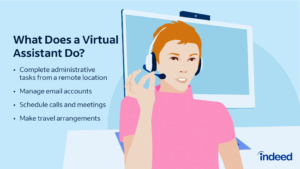
An Email Management Virtual Assistant (VA) handles your inbox with care. They help keep emails organized and respond quickly. This lets you focus on important tasks without email distractions.
They manage all types of emails, sorting, replying, and flagging urgent messages. Their role is crucial for busy professionals and businesses that get many emails daily.
Core Responsibilities
Sorting incoming emails into categories or folders.
Deleting spam or unwanted messages.
Replying to common questions with clear, polite answers.
Flagging important emails for your attention.
Scheduling meetings or appointments from email requests.
Following up on unanswered emails.
Skills And Tools Used
Strong communication skills for clear, professional replies.
Good typing speed and attention to detail.
Familiarity with email platforms like Gmail or Outlook.
Use of tools like filters, labels, and auto-responders.
Basic knowledge of calendar apps for scheduling.
Ability to prioritize emails based on urgency and importance.
Benefits Of Hiring An Email Va
Hiring an Email Management Virtual Assistant brings many advantages. It helps handle your emails efficiently and keeps your inbox tidy. This support saves time and lowers your daily stress.
With an Email VA, you focus on important tasks. Your email communication stays organized. This service improves your work life balance and productivity.
Time Savings
An Email VA sorts and replies to emails quickly. They filter important messages from spam or junk. This lets you spend less time checking emails. You gain hours every day to work on other projects.
Improved Organization
Your inbox stays clean and well-arranged. Emails are categorized by priority and topic. Easy access to important information is assured. Lost messages or missed deadlines become rare.
Reduced Stress
Knowing your emails are managed lowers anxiety. You avoid feeling overwhelmed by a full inbox. Clear communication helps you stay calm and focused. This support boosts your confidence at work.
How To Choose The Right Va
Choosing the right Email Management Virtual Assistant (VA) is key to saving time and stress. The right VA keeps your inbox organized and helps you stay focused on important tasks. Careful selection ensures smooth communication and efficient email handling.
Evaluating Experience
Check how long the VA has worked in email management. Experienced VAs understand common email tools and challenges. Ask for examples of past projects or clients. This shows their ability to handle different email systems and situations.
Assessing Communication Skills
Good communication is crucial for a VA. They must understand your instructions clearly. Look for quick, clear, and polite responses during your initial contact. This skill helps avoid mistakes and ensures your emails get proper attention.
Checking Technical Proficiency
The VA should know email platforms like Gmail or Outlook well. They also need skills in organizing emails, setting filters, and managing calendars. Check if they can use tools like Google Workspace or Microsoft Office. This helps maintain your workflow smoothly.
Credit: www.dragapp.com
Key Features Of Effective Email Management
Effective email management saves time and reduces stress. It helps keep your inbox clear and your tasks on track. A virtual assistant skilled in email management uses specific features to organize and respond to emails efficiently.
Inbox Organization
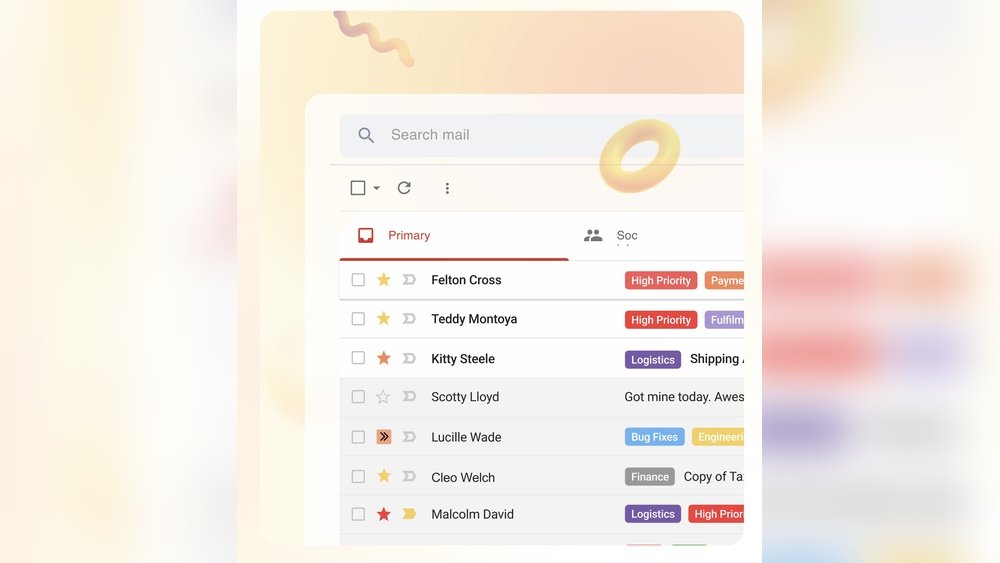
Organizing the inbox is the first step to effective email management. Emails are sorted into folders or labels for easy access. Unimportant messages get filtered out or deleted quickly. This keeps the inbox clean and focused on what matters most.
Prioritizing Emails
Not all emails need the same attention. Important messages get flagged or marked for quick response. Less urgent emails can wait or be handled later. This helps focus on tasks that need immediate action and avoid missing key communications.
Automating Responses
Automated replies save time on common questions or requests. Virtual assistants set up templates for quick, polite responses. This keeps communication smooth and timely without constant manual effort. Automation handles routine emails so you can focus on bigger tasks.
Tools To Enhance Email Management
Managing emails can be tough without the right tools. A virtual assistant who handles emails can use several tools to keep everything organized and efficient. These tools help save time and reduce stress by sorting, scheduling, and automating tasks.
Email Clients And Extensions
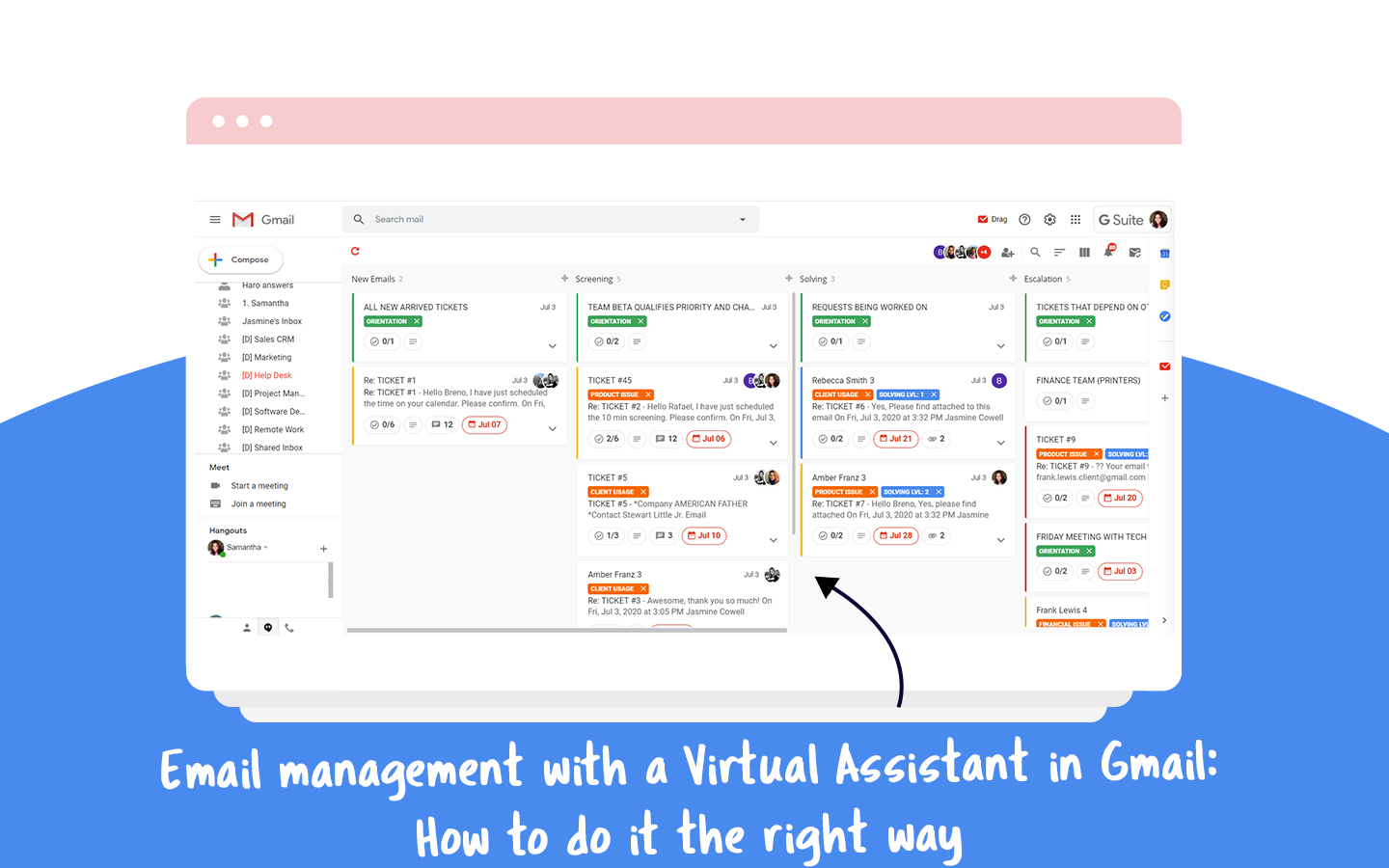
Email clients are programs that help you read and send emails easily. Popular ones like Gmail and Outlook offer features to sort emails by priority. Extensions add extra functions like tracking email opens or scheduling messages. These tools make managing a busy inbox simpler and faster.
Task Management Apps
Task management apps help keep track of important emails and follow-up tasks. Apps like Trello and Asana let users create lists and reminders. A virtual assistant can assign tasks and set deadlines to ensure nothing is missed. This keeps communication clear and organized.
Automation Software
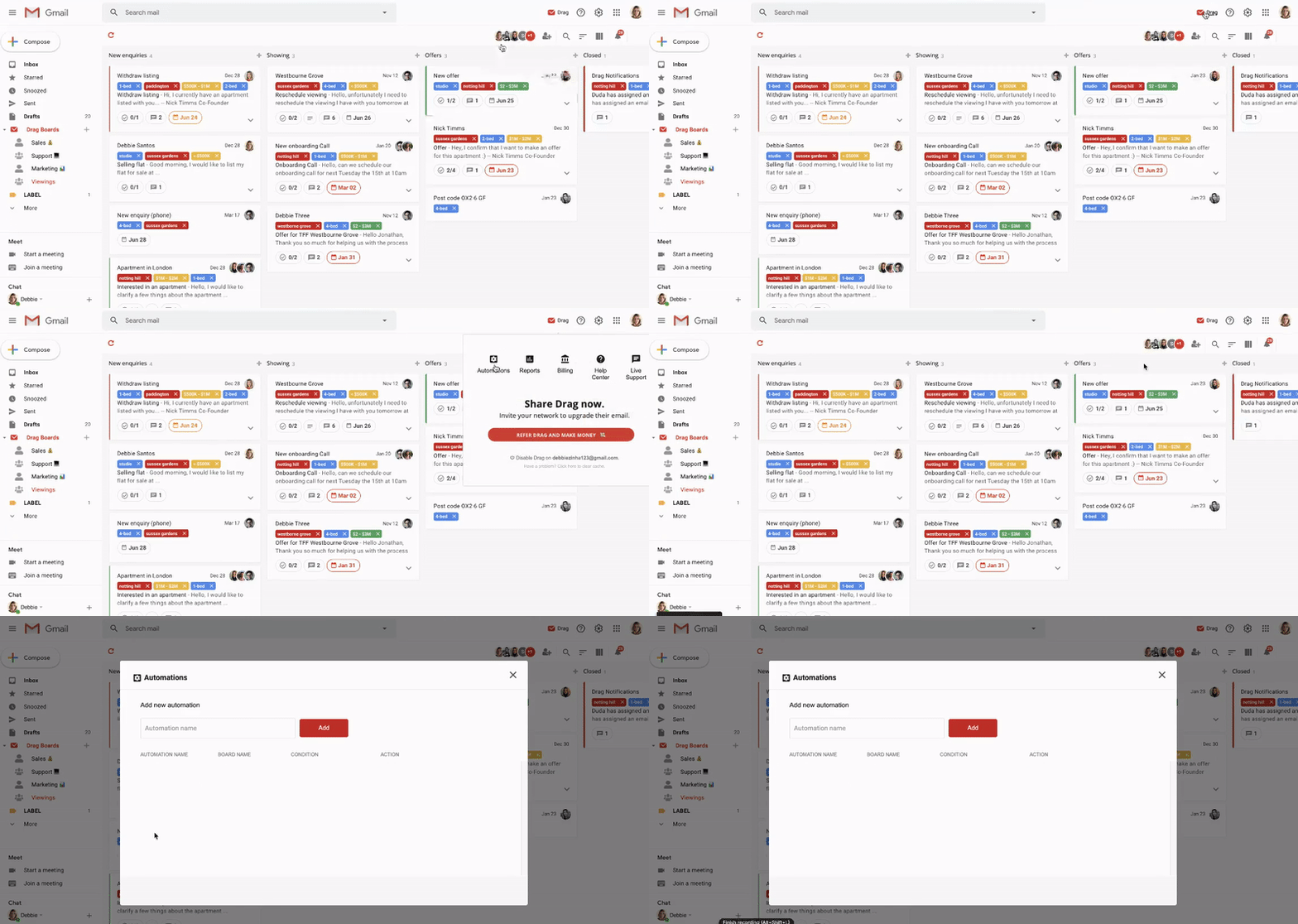
Automation software handles routine email tasks automatically. Tools like Zapier and IFTTT connect apps and trigger actions. For example, they can save attachments or send auto-replies. This reduces manual work and speeds up email management.
Best Practices For Working With Your Va
Working well with your email management virtual assistant (VA) helps save time and reduce stress. Clear rules and steady contact make your partnership smooth and effective. Tracking their work keeps tasks on track and improves results.
Setting Clear Guidelines
Start by explaining your email priorities and response style. Share examples of emails you like and dislike. Define working hours and expected response times. List tools and access they will need. Clear instructions prevent mistakes and confusion.
Regular Communication
Check in often to share updates and feedback. Use simple messages to avoid misunderstandings. Schedule brief calls or messages to discuss any issues. Encourage your VA to ask questions. Good communication builds trust and clarity.
Monitoring Performance
Review email replies and task completion regularly. Use simple reports or checklists to track progress. Praise good work and gently correct errors. Adjust guidelines as needed based on results. Monitoring helps maintain quality and improves efficiency.
Case Studies: Success Stories
Case studies reveal how an Email Management Virtual Assistant helps different professionals. These stories show real results and clear benefits. They explain how people save time and reduce stress. Each case highlights unique challenges and solutions.
Small Business Owners
Small business owners often face a flood of emails daily. One owner hired a virtual assistant to sort and reply to messages. This change freed up hours every week for business growth. The assistant also flagged important emails quickly. The owner now feels less overwhelmed and more focused.
Entrepreneurs
Entrepreneurs manage many tasks and tight schedules. One entrepreneur used an email assistant to handle client inquiries and follow-ups. This helped maintain strong communication without delay. The assistant organized emails by priority and deadlines. The entrepreneur could then spend more time on strategy and product development.
Corporate Professionals
Corporate professionals get hundreds of emails daily. A project manager employed a virtual assistant to filter irrelevant emails. The assistant created daily summaries and scheduled important meetings. This improved the manager’s response time and decision-making. It also reduced stress and improved work-life balance.
Credit: www.dragapp.com
Frequently Asked Questions
What Is An Email Management Virtual Assistant?
An Email Management Virtual Assistant organizes and responds to your emails efficiently. They prioritize, sort, and maintain your inbox. This saves you time and reduces email stress. They improve communication flow and ensure important messages get attention quickly.
How Can A Virtual Assistant Improve Email Productivity?
A Virtual Assistant filters and categorizes emails, reducing clutter. They respond to routine queries promptly. This allows you to focus on high-priority tasks. Their help speeds up email management and enhances overall productivity.
Are Email Management Virtual Assistants Cost-effective?
Yes, they save money by reducing your workload. Hiring a Virtual Assistant is cheaper than full-time staff. They provide flexible hours and tailored support. This ensures efficient email handling without extra overhead costs.
What Skills Should An Email Management Virtual Assistant Have?
They must be organized, detail-oriented, and tech-savvy. Good communication and email etiquette are essential. Familiarity with email platforms like Gmail or Outlook is needed. They should handle confidential information responsibly.
Conclusion
Managing emails takes time and focus. A virtual assistant can handle this task well. They keep your inbox organized and respond quickly. This lets you focus on important work. Save energy and reduce stress every day. Better email management means better communication.
It helps you stay on top of tasks. Think about how much time you can save. A virtual assistant makes email simple and smooth. Consider this smart choice for your busy life.

Ms.Sultana brings over 16 years of expertise working with global Clients by providing different skills and Services. For the last 5 years working as an Affiliate marketer, specializing in high-ticket campaigns that drive exponential growth. She holds a degree in Computer Science and Engineering as well as achieved many more skills certificates from different institute/academies/Platform. As part of the Elite Global Marketing team, Sultana has helped clients generate millions in revenue through strategic partnerships, innovative funnels, and data-driven insights.