⚠️ Disclosure: This post contains affiliate links. We may earn a commission at no extra cost to you.
⚠️ Disclosure: This post contains affiliate links. We may earn a commission at no extra cost to you.

The best PDF tools for online learning combine annotation, collaboration, OCR, and easy cloud access in one simple app.
I have guided students and teachers through dozens of remote courses. I know which PDF apps save time, reduce stress, and improve learning. This guide dives deep into the best pdf tools for online learning. I share hands-on tips, real examples, and clear criteria to help you choose the right tool. Read on to find practical advice and tested workflows you can use today.
PDFs are the standard file type for lectures, readings, and handouts. They keep layout and fonts the same on every device. That makes them ideal for students and teachers. Good PDF tools let you highlight, add notes, and share feedback quickly. Using the right app can turn static pages into interactive study material.
Choose tools that match the needs of teaching and study. Focus on these key features.
These features help you work faster. They also make learning more inclusive. When you pick a PDF tool, rank these features by how you teach and learn.

Below are tested options that cover a range of needs and budgets. Each tool name is followed by a short practical note, pros, and cons.
Best for full features and universal compatibility.
I used Acrobat Pro to create fillable worksheets and to batch OCR scanned handouts. It saved hours.
Best for classroom collaboration and live annotation.
Kami made group work feel like a shared whiteboard in my online class.
Best for fast editing and lightweight performance.
I liked Foxit for quick edits on long PDFs without lag.
Best free option for annotation and cross-platform use.
Xodo was my go-to for marking readings on a tablet during study sessions.
Best for Apple users who want polish and speed.
PDF Expert made reading long articles less tiring for me on macOS.
Best for quick online conversions and compression.
I used Smallpdf to shrink large lecture PDFs before uploading to an LMS.
Best for handwriting, lecture notes, and mixed media.
I prefer GoodNotes for handwriting on slides during live lectures.
Best free web editor for simple edits and forms.
I used PDFescape to add answer boxes to quick worksheets.
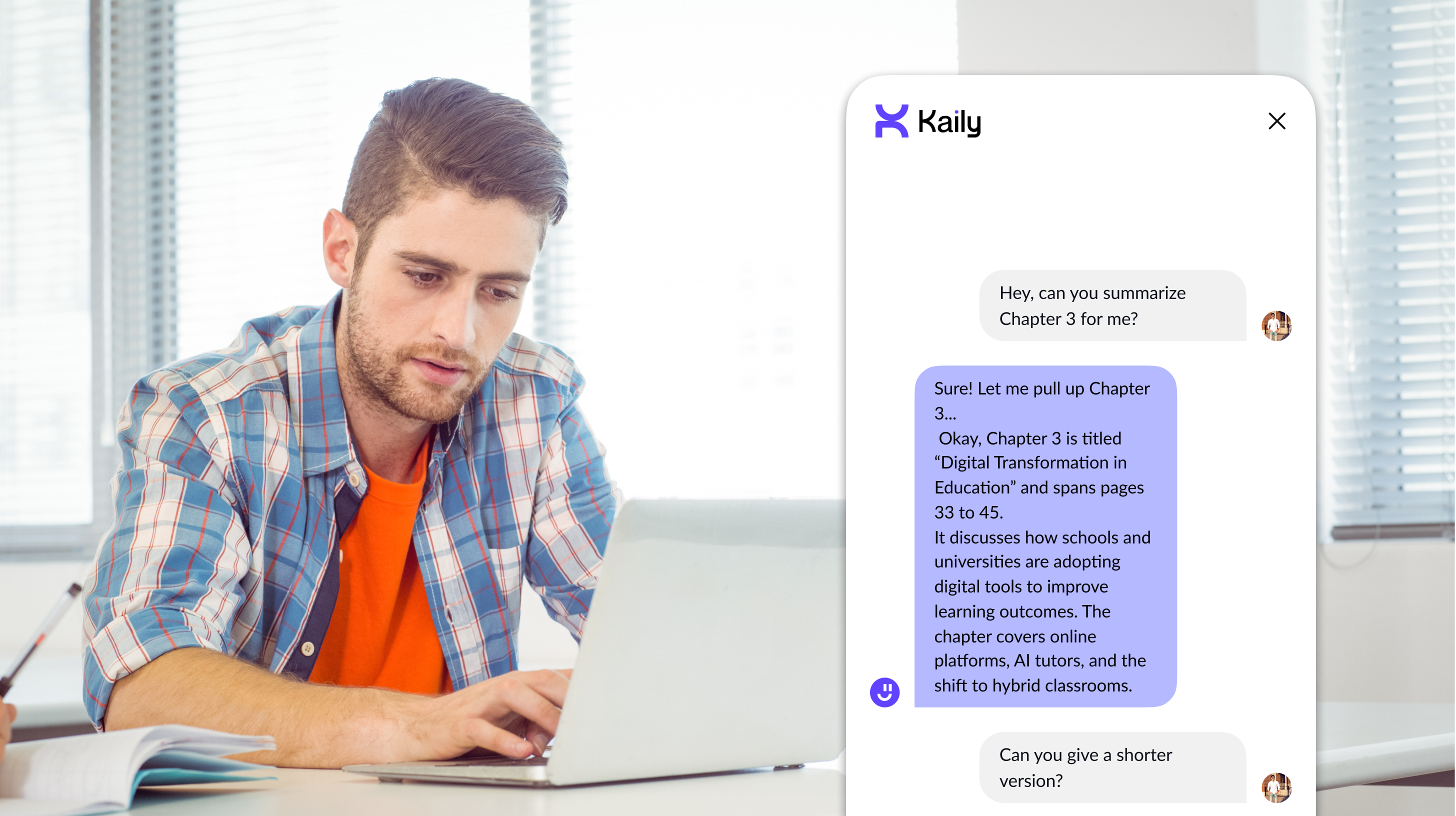
Match the tool to the task. Here is a short checklist to guide your choice.
I once picked a tool without testing LMS integration. That cost me time. Test the core workflow first. Ask students to try the free version before rolling it out to a whole class.
Use clear steps to save time and boost learning. Try these workflows.
These steps helped my students retain more from readings. Small changes make study time more effective.

Make sure the PDF tool fits your tech stack and supports all learners.
I once switched tools to gain better text-to-speech features. Students with dyslexia gave positive feedback. Accessibility matters more than you might expect.

Many students find Xodo and PDF Expert easy to use because they are simple and fast. Both offer clear annotation tools and sync across devices.
Yes. Free apps like Xodo and browser tools let you annotate without paying. Some free tiers limit advanced features.
Yes. Many tools integrate with LMS platforms to enable direct assignment submissions and feedback. Check the tool’s integration options before choosing.
OCR is useful if you work with scanned notes or images. It makes text searchable and selectable, saving study time.
Kami and cloud-based editors that allow live collaboration are best. They let multiple users annotate and comment at the same time.
Choosing the best pdf tools for online learning comes down to needs. Pick a tool that fits your workflow, budget, and learners. Test features like collaboration, OCR, and accessibility before committing. Start small, ask students to trial the app, and scale what works. Try one new feature this week and see how it improves learning. Share your experience or questions below to keep the conversation going.

Sofia Grant is a business efficiency expert with over a decade of experience in digital strategy and affiliate marketing. She helps entrepreneurs scale through automation, smart tools, and data-driven growth tactics. At TaskVive, Sofia focuses on turning complex systems into simple, actionable insights that drive real results.







I know you’ve spent way too many mornings playing Tetris with your schedule across four or five different apps. A virtual assistant to manage multiple…
A virtual assistant to prevent double booking is a software tool or service that monitors your calendar and blocks two appointments from landing in the same…
 Image source: Web (Bing) / calendarbridge.com (Web image (fairuse…