⚠️ Disclosure: This post contains affiliate links. We may earn a commission at no extra cost to you.
⚠️ Disclosure: This post contains affiliate links. We may earn a commission at no extra cost to you.

You've probably heard the pitch: AI voice assistants can now manage your whole calendar. The promise is a fraction of the reality. Yes, some assistants can book a meeting.
Most stumble when you ask them to keep it running smoothly.
The gap lives in the setup layer. Calendar apps run on APIs, and each assistant has to request OAuth 2.0 write permissions on specific calendars before it can act. That one step decides whether automation means real work or just a pretty notification.
As of 2026, only a handful of assistants actually write to calendars.
Calendar management means creating events, modifying existing ones, resolving conflicts, syncing across devices, and sending reminders.
As of 2026, only Microsoft 365 Copilot, Google Gemini, and Apple Intelligence can write to your calendar. Every other assistant is read-only.
Even those three handle features differently. Setup and training decide whether your calendar actually gets managed.
Every calendar feature runs through Calendar APIs. Those are the endpoints assistants call to read events, write new ones, or modify existing entries. Without API access, a voice assistant can't touch your calendar at all.
The authentication layer is OAuth 2.0, the standard described in RFC 6749. The assistant asks for permission on specific scopes. You approve them in your account settings.
The scope decides what the assistant can actually do.
Here's what the major Calendar APIs expose.
| Calendar API | Purpose |
|---|---|
| Google Calendar API | Read, create, and modify events on Google accounts |
| Microsoft Graph Calendar API | Similar event CRUD on Outlook and Microsoft 365 |
| Apple Calendar API | Personal Apple Calendar via device integration |
| Cal.com API | External booking pages and team scheduling |
| Reclaim.ai API | AI scheduling on top of your existing calendars |
Each assistant connects through the APIs it supports. If your calendar isn't on the list, expect friction.
Most "virtual assistant calendar" questions reduce to four variables.
If you're on one platform with under three calendars, the assistant handles it well with light setup. Add a second platform and you'll hit sync gaps. Events vanish between systems.
If you have more than five calendars or the assistant drives external commitments with clients, most assistants break. You'll need a review layer before the assistant touches a booking.
Shared calendars with write access add another layer. Most assistants don't see every event on those calendars in real time. Cross-timezone meetings add more complexity.
If your calendar drives client-facing work, keep the assistant in a clearer delegation role rather than full automation. It suggests and flags. You confirm.
Platform integration decides more than marketing claims. Here's what each major assistant can actually do with a calendar.
| Assistant | Write Access | Multi-Calendar | Strength | Weakness |
|---|---|---|---|---|
| Microsoft 365 Copilot | Yes | Yes | Outlook and Teams integration | Enterprise suite lock-in |
| Google Gemini | Yes | Yes | Personal Google Calendar | Weaker on shared calendars |
| Apple Intelligence (Siri) | Limited | No | Personal Apple Calendar | Fewer write features |
| Amazon Alexa | No | Limited | Reminders and alarms | Read-only calendar |
| Google Assistant | No | Limited | Reminders and alarms | Read-only calendar |
Microsoft 365 Copilot writes events, updates them, and handles multiple calendars. The Outlook and Teams integration means meeting scheduling works inside the same suite you already use.
Google Gemini handles Google Calendar well for personal scheduling. It works well for single-user flows. It struggles on shared or external calendars.
Apple Intelligence stays focused on personal Apple Calendar. It lacks broad multi-calendar support and can't write to non-Apple calendars cleanly.
Alexa, Google Assistant, and Bixby read but don't write. They're not viable for actual calendar management as of 2026.
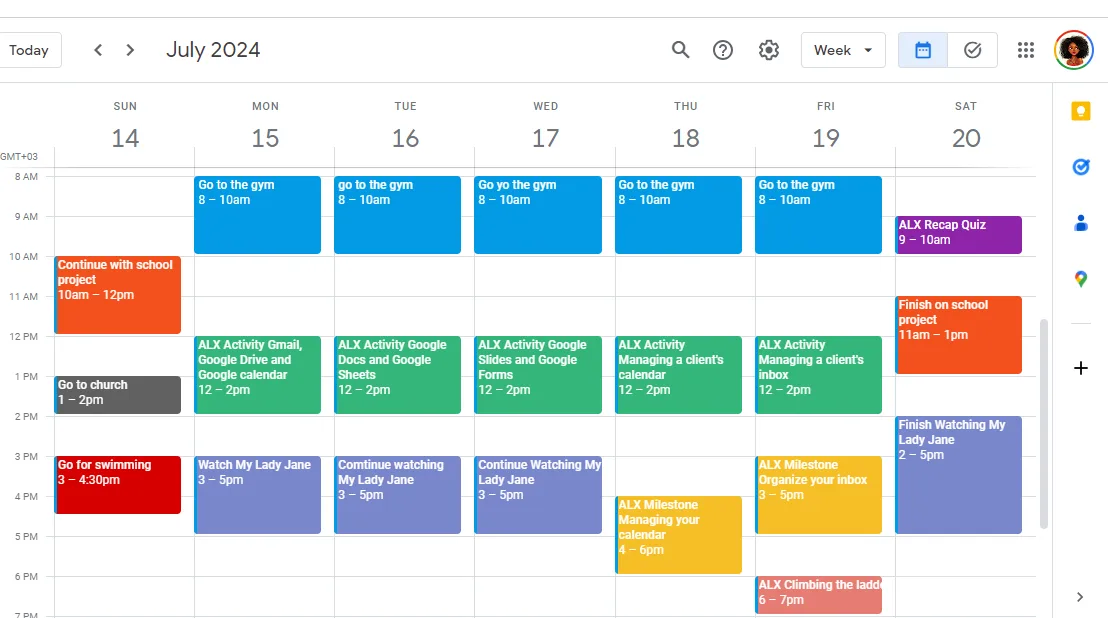
Setup is where automation earns its keep or fails quietly.
Building a proper calendar management workflow takes more than one afternoon. It pays off once it's live. A well-scoped setup keeps you from having to re-train the assistant every time you add a new calendar.
The basic training fundamentals apply to virtual assistants too, including AI ones.
Ambiguous natural language is the most common failure mode. "Book something Tuesday afternoon" is ambiguous. The assistant guesses.
Say absolute time instead.
Shared calendars are the second big one. The assistant often has read access but can't write on them. Check OAuth 2.0 scopes in Google Calendar Settings or Microsoft account permissions.
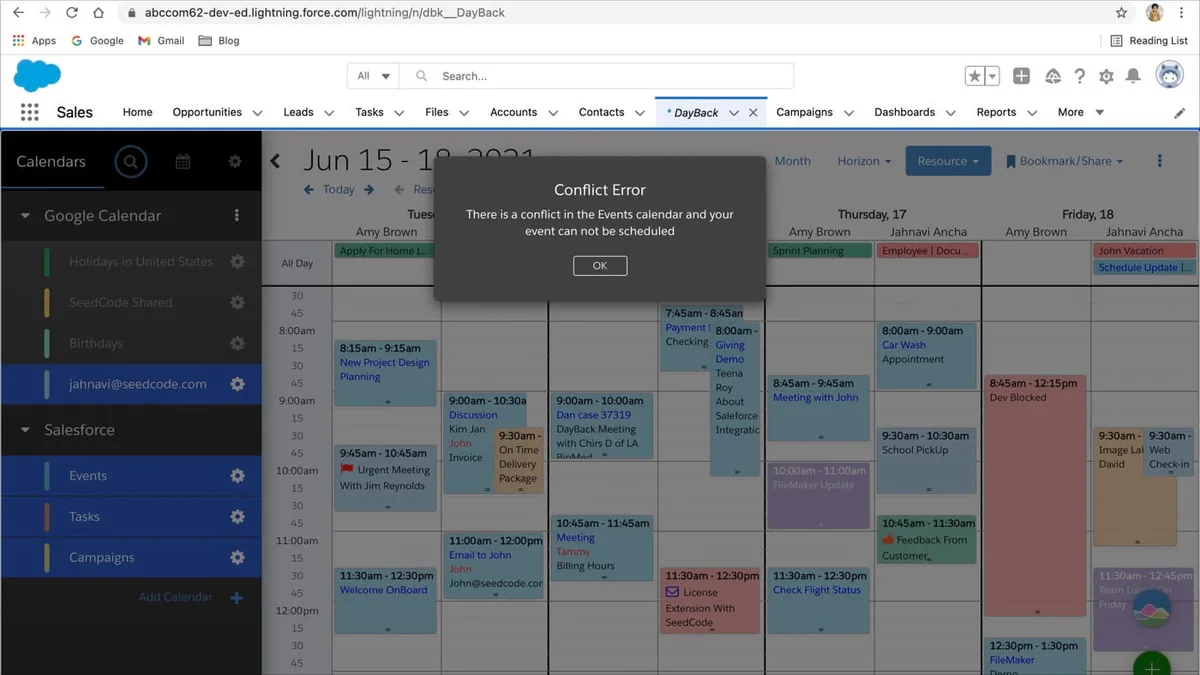
Third is double booking. The assistant sees a free slot and books it. Switch to review mode on shared calendars.
API rate limits trip silent failures too. The assistant reports success. The event didn't post.
Sync status checks aren't optional.
Offline mode hides failures another way. Some assistants can't push changes when offline. They queue and hope.
A virtual assistant acts like a human teammate if you treat it like one. Give it a clear task framework, defined commands, and a review layer for high-stakes meetings.
A virtual assistant manages calendars best on straightforward personal workflows. "Add Thursday 2 PM as a dentist appointment" is the kind of task Gemini or Copilot handles cleanly on the first try.
Shared calendars are where the assistant earns its keep. It can flag when your team's meeting time overlaps with a client call. That single feature saves more time than most people realize.
Focus time blocking is another strong fit. Copilot and Reclaim.ai can reserve deep work windows before your week fills up. Reclaim works by layering on top of whatever calendar you already use.
Client-facing bookings are a different story. Let the assistant propose slots, but keep humans on the confirmation loop. A missed follow-up on a real meeting costs more than the automation saves.
If you're running a team that depends on the assistant for scheduling, a solid SOP set is the difference between smooth operation and chaos. The routine upkeep side of running a VA operation applies just as well to AI calendars as it does to human ones.
The short version: trust the assistant for reminders, prep, and internal scheduling. Stay manual for anything external-facing.
If you're running a personal calendar, trust the assistant fully. Siri, Gemini, or Copilot handle it without much babysitting.
If you run a small business with two or three calendars, add a review layer. Copilot works well here for personal scheduling. You review what the assistant proposes on shared calendars.
If your calendars are all external-facing or client-facing, don't let the assistant commit. It suggests slots. A human VA approves.
That's the delegation workflow pattern most people land on eventually.
If you need to pick an assistant but aren't sure which one fits, the criteria for matching VA to need are similar for AI and human. Match the assistant to the calendars you actually live in.
One rule wins the others. Trust the assistant on calendars where mistakes don't cascade. Stay manual where they do.
As of 2026, the best options are Microsoft 365 Copilot, Google Gemini, and Apple Intelligence. Copilot leads on Outlook and Teams. Gemini is best on Google Calendar.
Siri is fine for personal Apple Calendar. Alexa and Google Assistant can read but not write.
Assistants create events, modify them, resolve conflicts, sync across devices, and send reminders. As of 2026, only Microsoft 365 Copilot, Google Gemini, and Apple Intelligence have full write access. Alexa, Google Assistant, and Bixby read but don't write.
Only partially. Copilot and Gemini catch two-zone conflicts within a single platform. Cross-platform conflicts slip through because sync isn't live.
The Calendar APIs refresh on intervals. Keep a review step for anything crossing more than two zones.
Only if you minimize OAuth 2.0 scopes and keep a review mode on. The assistant writes to specific calendar URLs with limited permissions. That means it can miss events it never had access to.
Review mode catches it.
Check permissions in Google Calendar Settings or your Microsoft account permissions. The write scope might have been revoked. Then check sync status across devices.
If the assistant isn't posting events, look at the API logs.
For personal calendars, yes. Setup takes an afternoon. For business calendars, it depends on volume.
If you schedule more than ten events a week, the time saved beats the setup cost. The delegation fundamentals for human VAs apply directly here.


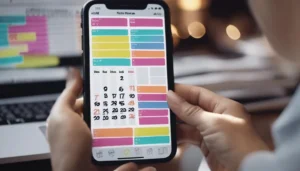





 Image source: Web (Bing) / pinterest.com (Web image (fairuse…
You’re drowning in email, your calendar is chaos, and you wonder how to manage virtual assistants remotely without spending all day managing them. Most guides…
Managing a virtual assistant doesn’t require a rigid playbook, it requires the right framework for your specific situation. If you’ve ever struggled with…