<strong data-start="132" data-end="147">Sofia Grant</strong> is a business efficiency expert with over a decade of experience in digital strategy and affiliate marketing. She helps entrepreneurs scale through automation, smart tools, and data-driven growth tactics. At <strong data-start="356" data-end="368">TaskVive</strong>, Sofia focuses on turning complex systems into simple, actionable insights that drive real results.
⚠️ Disclosure: This post contains affiliate links. We may earn a commission at no extra cost to you.
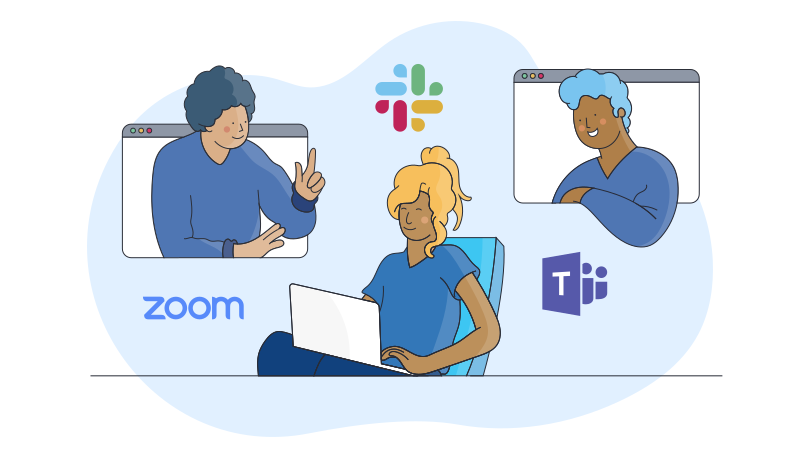
Video conferencing tools enable live teaching, collaboration, and assessment across distance learning environments.
I have designed, taught, and supported online courses for years, so I know what works and what breaks. This article walks you through video conferencing tools for online learning with clear guidance, tool comparisons, setup tips, security checks, and classroom tactics you can apply today. Read on to pick the right tools, avoid common mistakes, and run better online classes.
Source: ringcentral.com
Why video conferencing tools matter for online learning
Video conferencing tools for online learning let teachers and students meet in real time. They recreate many benefits of a live classroom: eye contact, instant feedback, and group work. Good tools also record sessions, enable polls, and connect with course systems. Choosing the right platform affects engagement, equity, and learning outcomes.
features to look for in video conferencing tools for online learning”
style=”max-width: 100%; height: auto; border: 2px solid black; border-radius: 10px; display: block; margin: 0 auto;”
loading=”lazy”
/>
Source: zealousys.com
Key features to look for in video conferencing tools for online learning
When you evaluate video conferencing tools for online learning, these features matter most.
Reliable audio and video. Poor sound or lag kills focus and comprehension.
Screen sharing and whiteboard. These make explanations clear and interactive.
Breakout rooms. Small groups boost participation and peer learning.
Recording and transcripts. Students who miss class can catch up and review.
Polls and quizzes. Quick checks keep learners engaged and give instant feedback.
Chat and hand-raising. These let quieter students participate without interrupting.
Security controls. Waiting rooms and host controls protect the class.
Integration with LMS and calendars. Seamless workflows save time and reduce errors.
Low bandwidth modes. They make sessions accessible in areas with slow internet.
Accessibility features. Captions and keyboard access help diverse learners.
Source: coolpo.io
Top video conferencing tools for online learning
Below are widely used platforms, what they do well, and when to choose them.
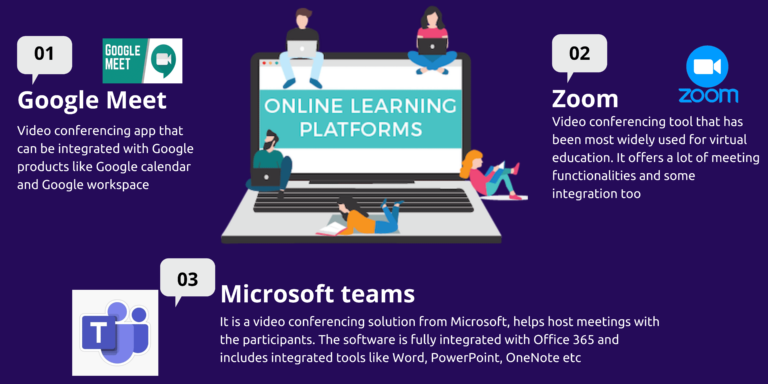
Zoom — Best for large interactive classes. Zoom is easy to use and strong on breakout rooms, polls, and recording. It scales well from small seminars to hundreds of participants.
Microsoft Teams — Best for institutions that use Office apps. Teams ties chat, files, and video into one workspace. It works well when your school already uses email and documents in the same ecosystem.
Google Meet — Best for simplicity and Google Classroom users. Meet is built into Google Workspace and is simple to launch. It fits schools that want minimal setup and fast integration.
Cisco Webex — Best for enterprise-level security and features. Webex offers advanced security, reliable performance, and built-in tools for engagement.
BigBlueButton — Best open-source choice for higher education. BigBlueButton focuses on learning-specific features like polling, multi-user whiteboards, and shared notes.
Jitsi — Best for free and privacy-focused setups. Jitsi runs in the browser and supports encryption. It’s a good option for small classes or pilot tests.
Adobe Connect — Best for structured, content-rich training. Connect excels with layouts, content pods, and precise classroom control for professional training.
Blackboard Collaborate — Best for embedded LMS classrooms. Collaborate is built for course delivery with attendance, breakout rooms, and content controls.
Each tool shines in a different use case. Match features to your course goals, class size, and tech budget.
Source: getmarlee.com
Best practices for teaching with video conferencing tools for online learning
Follow these steps to run smoother, more engaging sessions.
Plan short segments. Change activity every 10–15 minutes to keep attention.
Use polls and quick quizzes. They check understanding and boost focus.
Set clear norms. Tell students when to mute, how to ask questions, and how to use chat.
Rehearse tech and backup plans. Test audio, screen sharing, and links before class.
Record and label sessions. Students appreciate clear timestamps and topics.
Mix synchronous and asynchronous work. Use live time for interaction and recorded lessons for review.
Train students on features. A 5-minute demo reduces confusion and delays.
Limit lecture length. Aim for bite-sized presentations and more interaction.
These practices help you use video conferencing tools for online learning effectively and respectfully.
Source: skoolbeep.com
Setup, accessibility, and classroom management
A stable setup and clear management make classes run well.
Hardware checklist. Use a good mic, webcam, and a stable internet connection.
Lighting and background. Simple, well-lit backgrounds reduce distraction.
Bandwidth planning. Offer low-bandwidth options like audio-only or shared slides.
Captioning and transcripts. Turn on live captions to help diverse learners.
Classroom roles. Assign co-hosts or teaching assistants to manage chat and breakout rooms.
Time-zone clarity. Post session times in student local times to avoid confusion.
Make your setup predictable and inclusive. That increases attendance and learning.
Source: instancy.com
Security, privacy, and compliance
Protect students and data when you use video conferencing tools for online learning.
Use waiting rooms and authentication. These prevent uninvited guests.
Control screen sharing. Limit who can share during class.
Manage recordings securely. Store recordings behind access controls and notify participants.
Review data policies. Know where participant data is stored and how long it’s kept.
Use strong passwords and updated apps. Patchable apps reduce vulnerabilities.
Obtain consent for recordings. Clear notice builds trust and follows policy.
Risk is real but manageable. Prioritize privacy and set clear rules for students and staff.
Source: sandiego.edu
Integration with LMS and assessment tools
Connectivity makes workflows painless and learning measurable.
One-click joins. Integrations let students join from course pages and calendars.
Grade sync. Some platforms send quiz and attendance data back to the LMS.
Single sign-on (SSO). SSO reduces login friction and improves security.
Shared resources. Link recordings, slides, and assignments directly into lessons.
API and LTI support. These let you connect custom tools and automate tasks.
Choose video conferencing tools for online learning that fit your LMS to save time and reduce errors.
Source: 6connex.com
Pricing and cost considerations for choosing video conferencing tools for online learning
Budget wisely when you pick a tool.
Free tiers. Good for small classes, pilots, and trial runs.
Institution licensing. Schools often get better rates and admin controls with site licenses.
Per-host pricing. Check if costs scale with the number of teachers or rooms.
Hidden costs. Consider training, storage for recordings, and upgraded bandwidth.
Value vs. price. Prioritize features that increase learning, not just flashy extras.
Here are honest lessons from running online classes and training teachers.
I once ran a 200-student lecture on a platform without breakout rooms. Engagement dropped by half. Lesson learned: choose tools that match pedagogy, not popularity.
In another course, we used short pre-recorded videos and live office hours via a conferencing tool for online learning. Attendance rose and students reported higher satisfaction. The mix of asynchronous and live work worked well.
Common mistakes I made and advise you avoid:
Overloading sessions with content. Keep live time interactive.
Skipping tech checks. Small glitches cost big class time.
Ignoring accessibility. Captions and transcripts improved outcomes for many students.
These experiences show that good planning and the right platform make a measurable difference.
Frequently Asked Questions of video conferencing tools for online learning
What is the best video conferencing tool for teaching online?
The best tool depends on your needs: class size, LMS integration, and budget. Test two or three platforms with a pilot group before committing.
How do I keep students engaged during live sessions?
Break content into short chunks, use polls, and add small group work. Frequent interaction keeps attention and checks understanding.
Are recordings secure and private?
Recordings can be secure if stored with access controls and clear retention policies. Always notify participants and follow institutional rules.
Do video conferencing tools work on low bandwidth?
Many tools offer low-bandwidth modes, audio-only options, and reduced video quality to maintain connection. Offer slides or transcripts as alternatives.
How do I assess students in a video-based class?
Use timed quizzes, short live presentations, and submitted assignments. Combine formative checks during sessions with summative tasks outside class.
Conclusion
Video conferencing tools for online learning can transform access, interaction, and assessment when chosen and used well. Focus on clear features, reliable setup, privacy controls, and inclusive practices. Start small with a pilot, collect feedback, and iterate to find the right fit for your course. Try one change this week — schedule a tech rehearsal, enable captions, or add a five-minute poll — and see the difference. Share your experience, subscribe for updates, or leave a comment to continue the conversation.
Sofia Grant is a business efficiency expert with over a decade of experience in digital strategy and affiliate marketing. She helps entrepreneurs scale through automation, smart tools, and data-driven growth tactics. At TaskVive, Sofia focuses on turning complex systems into simple, actionable insights that drive real results.
Affiliate Marketer | SEO Specialist | Blogger at Elite Global Marketing Agency
Ms.Sultana brings over 16 years of expertise working with global Clients by providing different skills and Services. For the last 5 years working as an Affiliate marketer, specializing in high-ticket campaigns that drive exponential growth. She holds a degree in Computer Science and Engineering as well as achieved many more skills certificates from different institute/academies/Platform. As part of the Elite Global Marketing team, Sultana has helped clients generate millions in revenue through strategic partnerships, innovative funnels, and data-driven insights. She’s passionate about empowering businesses to scale by connecting them with the right affiliate opportunities.
Explore our resources or connect with us on LinkedIn to stay ahead in affiliate marketing.



 features to look for in video conferencing tools for online learning”