⚠️ Disclosure: This post contains affiliate links. We may earn a commission at no extra cost to you.
⚠️ Disclosure: This post contains affiliate links. We may earn a commission at no extra cost to you.

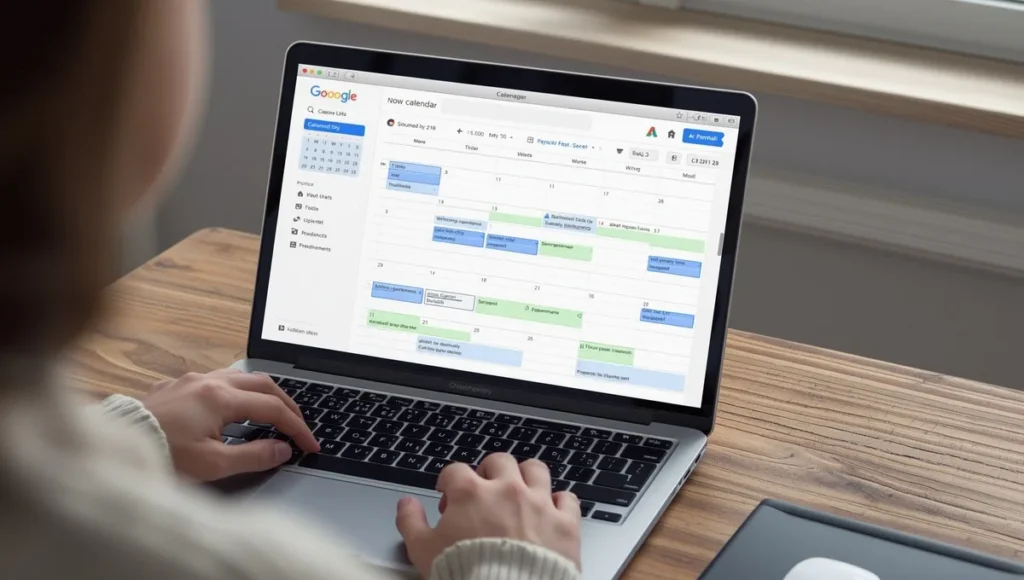
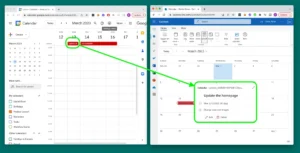
I know you've spent way too many mornings playing Tetris with your schedule across four or five different apps. A virtual assistant to manage multiple calendars takes that chaos away, so you don't have to remember which platform holds your dentist appointment versus your quarterly review. Instead of toggling between Gmail, Outlook, and your personal app to avoid a collision, one system pulls everything together and books around the conflicts before they happen.
We've dug into the research on what these tools actually do well and where they quietly fall apart, because most feature lists gloss over the real pain points like external stakeholder mismatches or timezone drift. Here's what you need to know before wiring one up to your life.
According to Microsoft's workplace analytics data, knowledge workers spend roughly two to three hours every week just coordinating meeting times across calendars. That's over 100 hours annually, equivalent to more than two full workweeks, lost to a problem that software should solve effortlessly. The catch is that not every calendar assistant handles your particular mess the same way, so we need to break down which tools shine where and which ones will quietly frustrate you once you put them through real-world pressure.
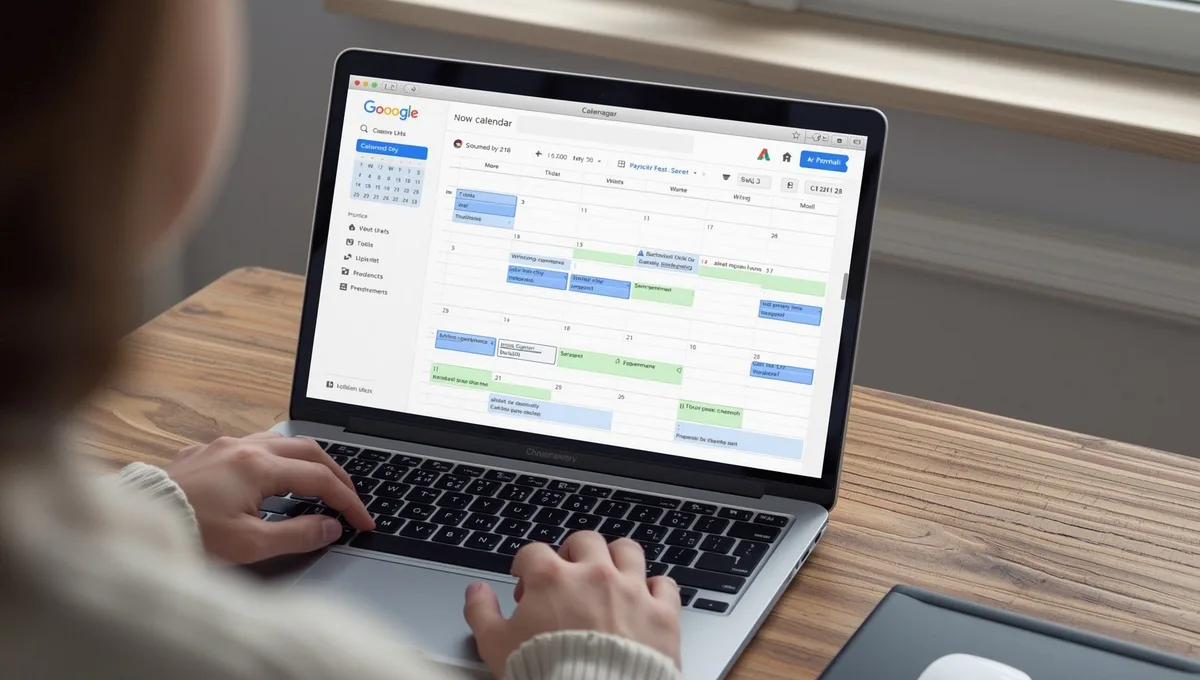
Image source: Web (Bing) / time.now (Web image (fair-use with source credit))
A virtual assistant to manage multiple calendars connects to every platform you use, reads your availability across all of them, and automatically finds conflict-free slots. The best tools for this job as of 2026 are Cal AI, Reclaim AI, and Clockwise, depending on whether you need individual focus protection, external guest coordination, or team-wide scheduling balance. They handle timezone conversion, buffer time insertion, and rescheduling without manual intervention.
Most cost between eight and twenty dollars per user per month, with free tiers available for light personal use.
You already feel the drain. Your work calendar lives in Gmail, your team uses Outlook, and your personal life gets squeezed into Apple Calendar somewhere between Zoom links and grocery reminders. Every time a colleague asks when you are free, you open three apps, squint at overlapping blocks, and hope you did not miss something.
This is what researchers call context-switching tax, and it adds up fast. According to Microsoft productivity research, the average professional loses two to three hours weekly just reconciling meeting times across disconnected systems.
Two to three hours sounds small until you multiply it across a year. That is over 150 hours of your life, gone. And the damage does not stop at lost time.
When you are manually juggling calendars, you silently accept back-to-back scheduling, skip buffer time between meetings, and sacrifice deep focus blocks because someone else's availability wins the tug-of-war. The mental load of keeping four scheduling tracks straight in your head is exhausting and honestly unnecessary in 2026.
The daily toll shows up in small ways. You skip lunch because the 12:30 p.m. slot keeps getting bumped. You leave work late because back-to-back calls eat your buffer time.
You stop protecting deep work blocks because someone always needs you available.
What most people do not realize is that calendar overload is not just a personal organizational problem. It is a systemic one. Tools like Gmail, Outlook, and Apple Calendar were never designed to talk to each other natively without friction.
Each one prioritizes its own ecosystem. So your shared team calendar might drop a conflict when someone accepts via mobile, or your personal reminders could bleed into work hours because nobody enforced the boundary. A proper virtual assistant sits between all of these systems, listens to every invitation, and makes sure your actual priorities get honored instead of whatever event landed in your inbox first.
If you want to understand the broader shift toward delegating this work, exploring how a professional handles appointment scheduling reveals the same pattern, both humans and AI cut the same cognitive overhead.
The market has split into two camps, and knowing the difference saves you a lot of headaches down the line. On one side, you have standalone AI tools like Cal AI, x.ai, Reclaim, Clockwise, and Magic Time. These sit on top of your existing calendars and push automation logic across them.
On the other side, you have native AI assistants baked directly into Google Workspace and Microsoft 365, which can only optimize within their own walled gardens. If your world runs entirely on Gmail, Google's built-in AI Assistant might cover you. But if you are mixing Outlook, Apple, and third-party booking links, the standalone tools are where you need to look.
The standalone assistants differ in philosophy more than they differ in raw capability. Some focus on finding meeting times effortlessly. Others treat your calendar like a resource allocation problem, minimizing back-to-back meetings and protecting focus time by force.
Understanding this distinction matters because picking the wrong philosophy means you will end up fighting your tool instead of being helped by it.
Here is a straightforward breakdown of what each major player actually does:
Image source: Web (Bing) / futureen.com (Web image (fair-use with source credit))
If your workload leans heavily toward solo productivity with scattered personal commitments, then pairing your setup with an organized calendar approach helps the AI understand your true constraints instead of just reacting to incoming invites.
Not every calendar assistant wins at every job, and the real differentiators show up only after you have been burned by one. After digging through user reports, documentation, and published benchmarks, here is how each tool holds up under realistic conditions.
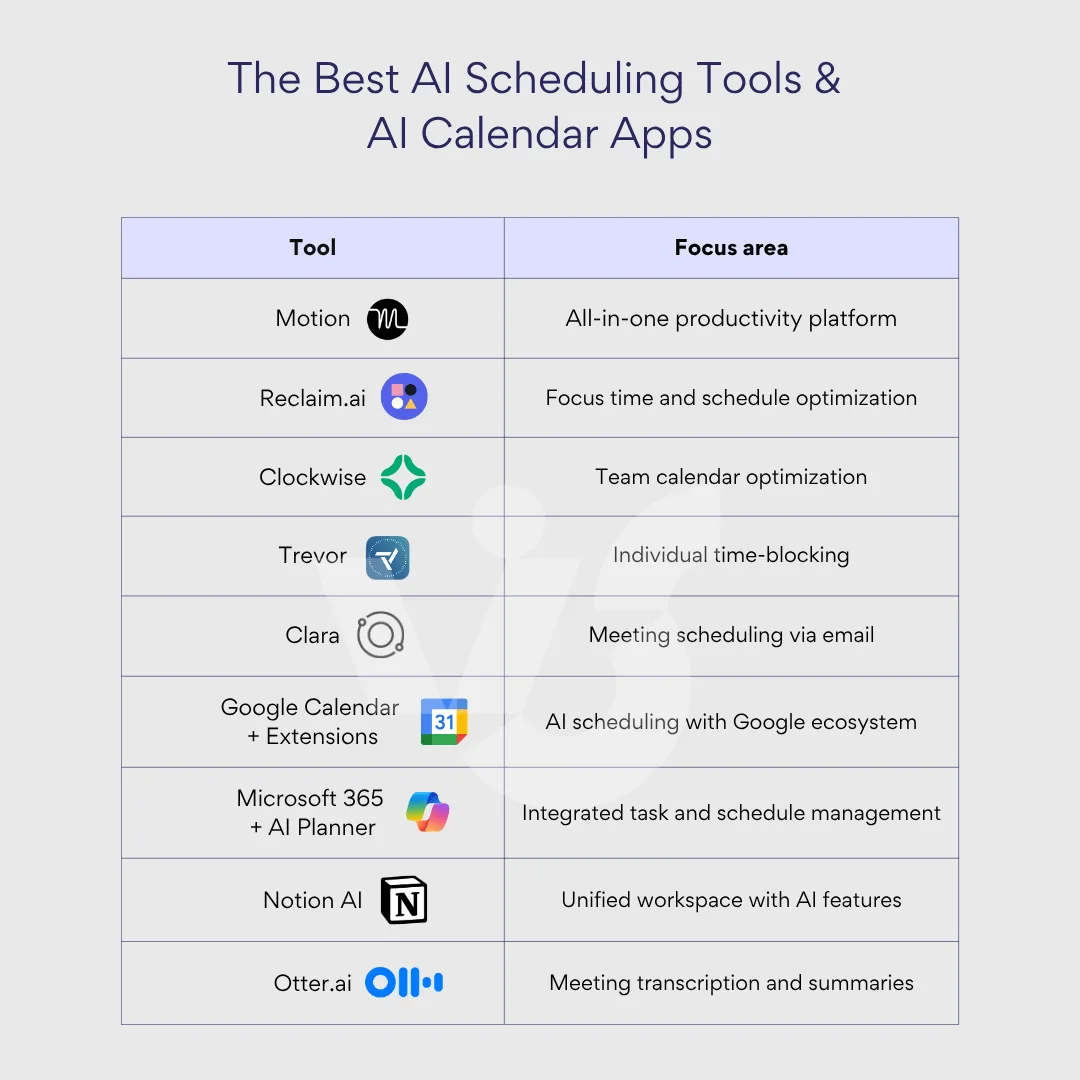
Image source: Bing (Web (fair-use with source credit))
| Tool | Multi-Calendar Sync | External Guest Handling | Focus Time Protection | Team Optimization | Best Known For |
|---|---|---|---|---|---|
| Cal AI | Excellent | Strong | Moderate | Moderate | Conflict-heavy schedules |
| x.ai | Good | Excellent | Weak | Weak | Booking with outside contacts |
| Reclaim.ai | Excellent | Moderate | Excellent | Moderate | Deep work preservation |
| Clockwise | Good | Moderate | Moderate | Excellent | Group team scheduling balance |
| Magic Time | Good | Poor | Excellent | Weak | Solo productivity hardening |
| Google Calendar AI | Limited (Google only) | Moderate | Moderate | Weak | Gmail-native workflows |
| Microsoft Copilot | Limited (Outlook only) | Moderate | Moderate | Moderate | Office 365 environments |
What jumps out here is that nearly every tool carries a compromise. If you need flawless external coordination, such as booking lunch with clients who use totally different email providers, x.ai wins, but you are giving up team-level scheduling intelligence. If you are running a department and need everyone's schedule harmonized, Clockwise is unmatched, but it is less useful for personal life management.
The Google and Microsoft native assistants remain locked inside their ecosystems, which disqualifies them for anyone juggling three or more platforms.
When deciding on a tool, it helps to think about where you experience the most friction. Are you constantly missing conflicts? Are external invitees causing you the most trouble?
Or is it simply that your own calendar keeps getting colonized by meetings? Your dominant pain point should drive the selection more than any feature checklist. For anyone weighing whether automation or human assistance is the smarter path, the most effective scheduling methods outline similar decision criteria that apply equally well to AI tools.
This is where most people get stuck. They try to find a single best tool, and there is not one. The right answer depends entirely on what kind of calendar chaos you are wrestling with daily.
Let me walk through the most common profiles and match them to the tool that handles each one best.
Profile A: The Cross-Platform Juggler. You live between Gmail, Outlook, and Apple Calendar simultaneously. Work, personal life, and a side project each sit on different systems. You need something that actually talks to all three reliably. → Reclaim.ai or Cal AI.
Both handle multi-platform sync natively and have the strongest cross-ecosystem conflict detection.
Profile B: The External Coordinator. Your calendar headaches mostly come from inviting people outside your organization. Clients, vendors, and freelance collaborators do not use your calendar tool, so availability matching is a nightmare. → x.ai. Its entire architecture is optimized for external guest coordination through natural language, even when they reply from a totally different email provider.
Profile C: The Team Lead or Manager. You are responsible for synchronizing a group's schedule, minimizing back-to-back meeting chains, and ensuring your team has breathing room between calls. → Clockwise. It is built from the ground up for team-level optimization, not individual convenience.
Profile D: The Deep Work Protector. Meetings keep eating your concentration. You need hard boundaries enforced automatically, and you would rather decline a meeting than shift it into your focus window. → Magic Time. It treats protected focus time as non-negotiable and pushes back harder than any competitor.
Profile E: The Ecosystem Loyalist. Everything you do already lives in one platform, either pure Google Workspace or pure Microsoft 365, and you have not felt the pain of cross-platform sync failures yet. → Start with the native AI assistant inside whichever platform you use. Upgrade to a standalone tool only when you hit its limits.
If you lean more toward human support than automation, reading about hiring a dedicated scheduler matters when you want to weigh whether AI alone covers your situation or if you would benefit from a hybrid approach.
Even the best tool will disappoint you if you wire it up carelessly. After reviewing dozens of user reports and support forums, certain patterns keep showing up across every platform. These are not edge cases.
They are predictable failures that anyone can avoid with ten minutes of prep.
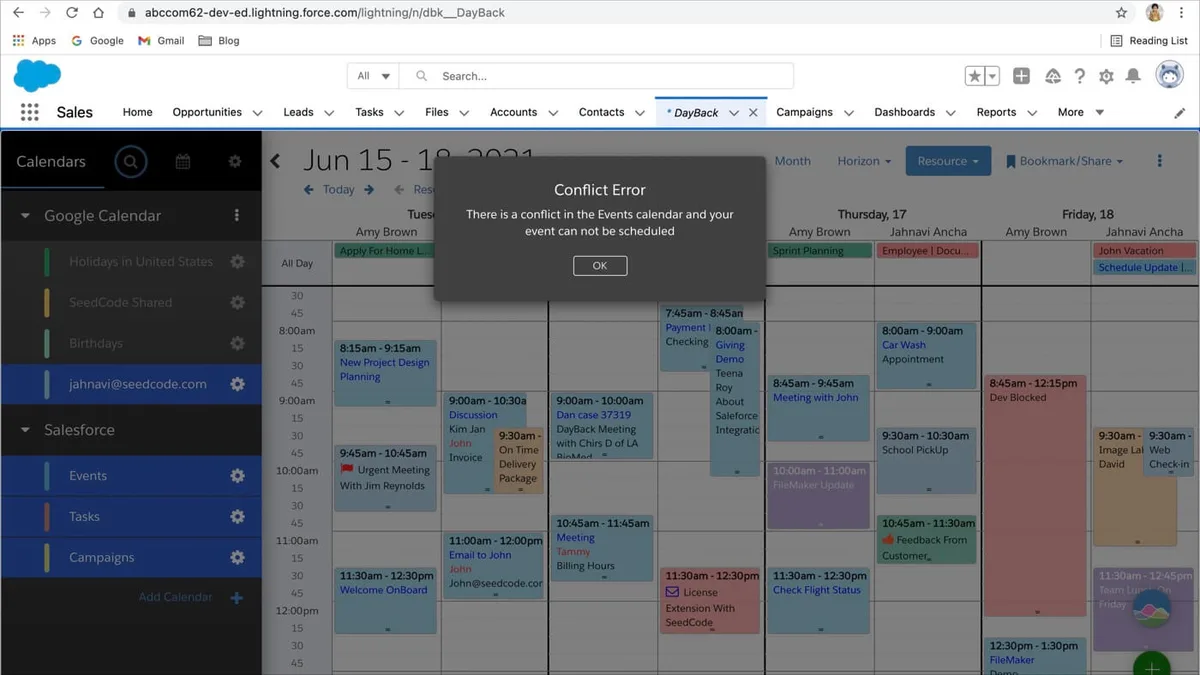
Image source: Web (Bing) / dayback.com (Web image (fair-use with source credit))
Mistake 1: Connecting fewer accounts than you actually use. People link their work and personal calendars, then forget about their spouse's shared calendar, their kids' schedules, or that old booking tool they still check. The AI only optimizes what it can see. Any hidden calendar becomes a source of blind collisions.
Mistake 2: Giving the AI full autonomy without defining its boundaries. If you hand over complete write access and zero scheduling preferences, the assistant will book you into anything that fits, including low-value meetings that drain your energy. Always configure your priorities first, preferred focus blocks, hard-decline thresholds, buffer requirements, and timezone rules.
Mistake 3: Skipping the test run before going live. Do not enable automatic acceptance and auto-responding from day one. Start the assistant in observation mode, watch how it handles a few real scheduling conflicts, and verify it resolves them correctly before letting it act autonomously. Most tools offer this as a trial phase.
Use it.
Mistake 4: Ignoring how the tool handles recurring events with drift. Recurring weekly meetings usually track fine. The moment you have recurring events tied to variable dates, such as quarterly reviews, holiday schedules, or shifting project milestones, many assistants fumble the logic. Check how your chosen tool behaves with these before committing.
Mistake 5: Assuming timezone detection is automatic and accurate. Several tools guess your primary timezone based on your IP address or calendar location. If you travel frequently or coordinate across multiple regions, verify the timezone logic early. A misconfigured timezone rule silently shifts every suggested slot by several hours.
For anyone weighing whether automation or human assistance is the smarter path, whether it pays to hire a booking coordinator offers a direct comparison that applies just as well when you are choosing between AI and human oversight.
The pricing landscape for AI calendar assistants varies widely, and understanding the tiers helps you avoid paying for features you will never use. Most tools follow a freemium model where the free version covers basic sync and conflict detection, but the real power lives behind the paid wall. As of 2026, individual plans typically range from zero dollars on the basic tier up to twenty-five dollars per user per month for enterprise-grade features.
| Tier | Monthly Cost (Per User) | Key Inclusions | Best Fit |
|---|---|---|---|
| Free | $0 | Basic multi-calendar sync, limited conflict alerts, manual review required | Casual users testing one tool |
| Personal Pro | $8–$12 | Unlimited smart scheduling, full focus protection, external guest handling | Solo professionals managing 2+ calendars |
| Team Plan | $15–$20 | Group optimization, admin controls, shared availability rules | Small teams of 5 to 20 people |
| Enterprise | $20–$25+ | Custom SSO, audit logs, dedicated support, compliance features | Organizations with security requirements |
The free tiers deserve caution. Several tools limit how many calendars you can connect or cap your daily AI suggestions at ten. If your schedule generates more than ten conflicts in a day, you will quickly hit the wall.
Upgrading from free to paid usually unlocks unlimited sync connections, unrestricted focus blocking, and automatic timezone handling.
Value also depends on whether you count saved time against the subscription cost. At twelve dollars monthly, a tool that recovers even two hours of weekly coordination time pays for itself roughly eightfold when you factor in average knowledge-worker hourly rates. However, the math shifts if your primary friction is occasional external scheduling rather than constant internal overload.
In those cases, spending fifteen dollars monthly on a heavy team optimizer is overkill.
Before committing to a paid plan, verify whether the tool offers a fourteen-day free trial with full feature access. That gives you enough time to run your actual schedule through the system and see how it handles your messiest weeks. Many virtual assistant services offer comparable pricing structures, so comparing human-supported calendar management against AI automation can clarify where your budget delivers the most return.
Yes, provided the tool supports both calendar platforms you rely on. Reclaim AI and Cal AI both sync across Google, Outlook, and iCloud accounts simultaneously. Just make sure you link every calendar you actually use, including shared family or project calendars.
Anything left unlinked becomes invisible to the assistant and can still cause collisions.
Most major calendar assistants offer a functional free tier with reasonable limitations. You typically get three connected calendars, basic conflict alerts, and a cap on automated actions per day. The free versions work fine for light scheduling needs.
If your calendar exceeds five active conflicts weekly or involves external guests constantly, you will outgrow the free tier quickly.
Reputable tools comply with SOC 2 Type II standards and GDPR regulations as standard practice. They encrypt data in transit and at rest, and they never sell your scheduling information. Still, you should review each platform's privacy policy before connecting sensitive calendars.
Avoid granting write permissions until you confirm the tool respects your time-blocking rules and does not auto-accept low-priority invites without your explicit approval.
Well-configured assistants rarely produce double bookings, but they are not infallible. Double-booking usually occurs when external stakeholders reply outside the connected calendar ecosystem, when recurring events contain shifting dates, or when the AI lacks visibility into one of your accounts. Running the tool in observation mode for your first two weeks catches these edge cases before the assistant acts autonomously.
It depends on the tool. Most stand-alone assistants like Reclaim AI and Clockwise support major platforms without rebuilding your rules. However, migration often requires re-linking accounts and reapplying focus-time preferences.
Some timezone and rule settings may not transfer automatically. Plan for a brief adjustment period, and export your current schedule configuration before disconnecting any calendar source during the switch.

Sofia Grant is a business efficiency expert with over a decade of experience in digital strategy and affiliate marketing. She helps entrepreneurs scale through automation, smart tools, and data-driven growth tactics. At TaskVive, Sofia focuses on turning complex systems into simple, actionable insights that drive real results.









You’ve got meetings stacked on top of meetings, and a virtual assistant for Google Calendar sounds like the fix. The promise is simple: something keeps your…
You’re staring at a Calendly page that’s filling with booking requests faster than you can reply. A virtual assistant for Calendly can take that load, but only…
You’re drowning in meeting requests and your calendar looks like a war zone. Virtual assistant Calendly management is the fix that lets a trusted helper handle…