
Virtual assistant management software centralizes tasks, communication, scheduling, and performance tracking for remote teams.
I build and manage remote teams and have implemented virtual assistant management software in small businesses and agencies. This guide explains what virtual assistant management software does, why it matters, and how to pick, set up, and use it well. Read on for clear, practical steps, real lessons from hands-on work, and actionable tips you can apply today.

What is virtual assistant management software?
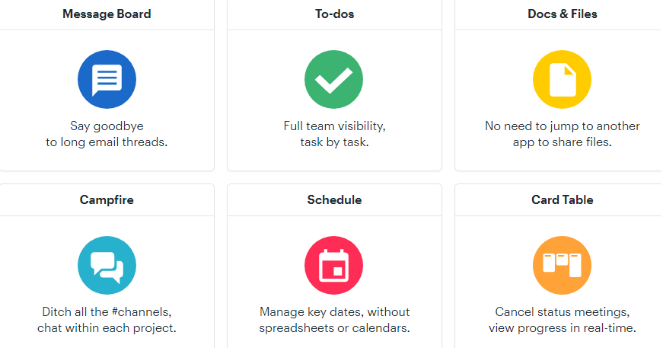
Virtual assistant management software is a platform that helps managers assign work, track progress, and communicate with remote assistants. It brings tasks, messages, time tracking, and files into one place. The goal is to make teams more productive while keeping oversight light. I use this software to replace long email chains and scattered spreadsheets with simple workflows.

Key features to look for
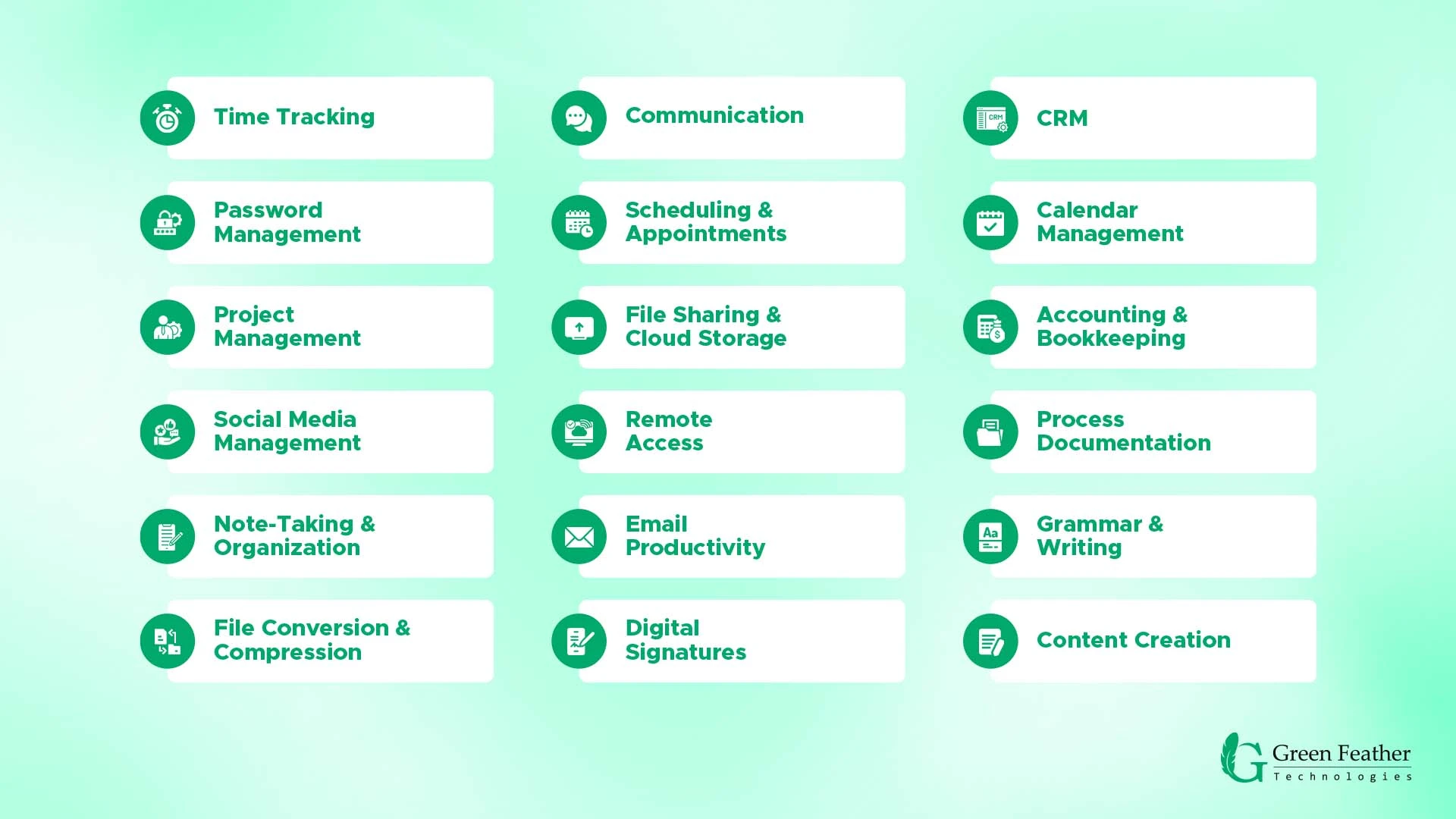
Choose virtual assistant management software with the right mix of features for your workflow. Look for tools that make daily work simple and clear.
- Task and project boards that show status at a glance.
- Time tracking and activity logs for fair billing and accountability.
- Built-in messaging and file sharing to cut email clutter.
- Templates and automation to standardize repetitive tasks.
- Role-based permissions to protect sensitive info.
- Reporting dashboards that show performance and bottlenecks.
A shortlist of features saves time during trials. Match features to your most common tasks before you buy.

Benefits of using virtual assistant management software
Using virtual assistant management software makes remote work feel organized and familiar. Teams hit deadlines more often. Communication becomes shorter and clearer. Clients see progress without constant updates. Lower friction means more work done in less time. Over months, this boosts trust, reduces mistakes, and raises capacity.
How to choose the right virtual assistant management software
Pick a tool that fits your team size, budget, and workflow. Follow these steps to choose wisely.
- Define must-have features and nice-to-have items.
- Try free trials with a small project to test fit.
- Ask about integrations with tools you use now.
- Check data security and backup policies.
- Compare pricing by active users, not seats alone.
I prefer starting with a 30-day pilot. Invite two assistants and one manager to test core tasks. That test exposes hidden costs and missing features fast.

Implementation best practices
A smooth rollout prevents frustration and keeps momentum high. Use these practical steps.
- Map workflows before you start. Know each step in a task.
- Create templates for recurring tasks to save time.
- Train assistants with short videos and checklists.
- Start small and expand features as the team learns.
- Hold weekly reviews to refine processes and rules.
From my experience, the biggest win is a clear onboarding checklist in the software itself. It reduces errors on day one.

Common pitfalls and how to avoid them
Adopting software can fail for simple reasons. Watch for these traps.
- Over-customizing before users know basics. Keep it simple at first.
- Not enforcing time tracking or standards. Set clear rules and follow up.
- Choosing tools that don’t integrate with key apps. Integration saves time.
- Skipping proper training. Teach by doing and repeat short lessons.
- Ignoring feedback from assistants. They work in the tool daily and see issues first.
I once bought a feature-rich tool that our team did not use. It taught me: user adoption matters more than feature lists.
.jpg?table=block&id=219d7eab-ed89-807a-98a6-f6c9909e4214&cache=v2)
Pricing, costs, and ROI
Understand true cost before committing. Price labels hide real expenses.
- Look at per-user and per-feature costs.
- Factor in onboarding time and training hours.
- Include costs of integrations or add-ons.
- Estimate time saved to calculate ROI over 6–12 months.
In one project, a modest tool paid for itself in three months by cutting admin time by 30 percent. That kind of ROI often justifies the subscription.

Security and integrations
Protect data and connect the tools your team already loves. This keeps work smooth and safe.
- Ensure encryption for data at rest and in transit.
- Check role-based access and audit logs.
- Use single sign-on when available to simplify login and security.
- Confirm integrations with calendars, cloud storage, and CRM systems.
Security reviews should be part of your procurement checklist. When security is solid, trust grows across the team.
My personal experience: lessons and tips
I have onboarded virtual assistant management software for marketing teams and solo entrepreneurs. Small steps and clear rules made the biggest difference.
- Start with a single use case like content scheduling or billing.
- Make templates for every repetitive task immediately.
- Pair each new assistant with a short mentor period.
- Schedule the first monthly review right after launch.
One memorable win was reducing task turnaround from 48 hours to 8 hours by using a shared checklist and quick feedback loops. That change came from simple rules, not fancy features.
Frequently Asked Questions of virtual assistant management software
What does virtual assistant management software do?
It organizes tasks, time tracking, communication, and files for remote assistants. It makes workflows visible and easier to manage.
Can virtual assistant management software replace email?
It reduces the need for email by centralizing messages and task comments. Some emails still happen, but fewer are needed for daily work.
Is the software hard to learn for assistants?
Most tools are simple to learn with short onboarding and templates. A 1–2 hour focused training usually works well.
How does pricing typically work?
Pricing often charges per active user or per feature tier. Watch for extra costs for integrations and advanced reporting.
How secure is the data in these platforms?
Many platforms use encryption and role-based controls. Check each vendor’s security policies and audit options before you commit.
Conclusion
Virtual assistant management software can change how remote teams work. It clarifies tasks, improves speed, and keeps data in one place. Start with small pilots, focus on adoption, and measure time saved to track ROI. Try a short trial, create a simple template, and invite your team to test it for a month. If this guide helped, subscribe, share your experience, or leave a comment with questions about your setup.

Sofia Grant is a business efficiency expert with over a decade of experience in digital strategy and affiliate marketing. She helps entrepreneurs scale through automation, smart tools, and data-driven growth tactics. At TaskVive, Sofia focuses on turning complex systems into simple, actionable insights that drive real results.